For desk workers, understanding Is Your Desk Causing Your Back Pain? A Complete Ergonomic Audit is essential for maintaining comfort and productivity throughout the workday. Here is what the research shows and how to apply it.
Your Desk Might Be the Hidden Cause of Your Back Pain
You sit down at your desk each morning, coffee in hand, ready to tackle the day. But by mid-afternoon, a familiar ache creeps into your lower back. You shift, stretch, maybe stand for a few minutes—but the pain lingers. Sound familiar?
You’re not alone. According to the American Chiropractic Association, back pain is the single leading cause of disability worldwide, and desk workers are disproportionately affected. A study published in Applied Ergonomics found that workers with poorly designed workstations report 50% more musculoskeletal discomfort than those with ergonomic setups.
The culprit? Your desk setup. The good news is that most back pain from sitting is preventable—and fixable. In this complete ergonomic audit, we’ll walk you through the exact steps to diagnose and resolve the issues causing your discomfort. By the end, you’ll have a clear, actionable plan to work pain-free.
Understanding the Connection: Desk Setup and Back Pain
How Sitting Affects Your Spine
When you sit, your spine bears up to 40% more pressure than when you stand, according to research from the University of Alberta. This pressure escalates when your posture is poor—slouching, leaning forward, or hunching over a keyboard.
The natural curve of your lower back (lumbar lordosis) is designed to distribute weight evenly. But sitting for hours, especially without proper support, flattens this curve. This leads to muscle strain, disc compression, and eventually, chronic pain.
The Role of Your Desk Setup
Your desk, chair, monitor, keyboard, and mouse all influence how your body aligns. When even one element is off, your muscles compensate, creating tension and pain. For example:
- A monitor that’s too low forces you to tilt your head down, straining your neck and upper back.
- A chair without lumbar support lets your lower back collapse, increasing disc pressure.
- A desk that’s too high or low makes your shoulders hunch or your wrists bend awkwardly.
This isn’t just about comfort—it’s about long-term health. A 2021 systematic review in BMC Musculoskeletal Disorders linked poor workstation ergonomics to a 60% higher risk of chronic low back pain.
Step-by-Step Ergonomic Audit for Desk Workers
Step 1: Assess Your Chair and Lumbar Support
Your chair is the foundation of your ergonomic setup. Start by checking if your lower back has adequate support. The ideal chair supports the natural inward curve of your spine. If your chair lacks this, or if you feel a gap between your back and the chair, you need a lumbar cushion.
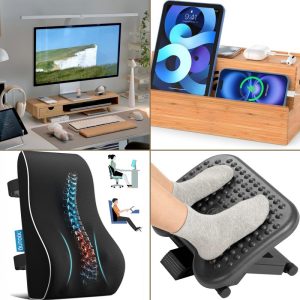
Quick fix: Place a rolled-up towel or small pillow at the curve of your lower back. For a permanent solution, consider a dedicated lumbar support like the Slowvana Lumbar Support, designed to maintain proper spine alignment throughout the day.
Checklist:
- Are your feet flat on the floor? If not, you need a foot rest.
- Are your knees at a 90-degree angle? If your chair is too high, your thighs angle downward, straining your hips.
- Is there a 2-3 inch gap between the back of your knees and the seat? This prevents pressure on your thighs.
Step 2: Optimize Your Monitor Height
One of the most common causes of desk-related back pain is a poorly positioned monitor. When your screen is too low, you tilt your head forward, straining the muscles in your neck and upper back. Over time, this can lead to “tech neck” and chronic headaches.
The rule: The top of your monitor should be at or just below eye level. You should be able to look straight ahead without tilting your head. If you wear bifocals, lower the monitor slightly so you can view it through the lower part of your lenses.
Quick fix: Stack books or a sturdy box under your monitor to raise it. For a more stable and adjustable solution, use a Slowvana Monitor Stand, which elevates your screen to the ideal height and frees up desk space.
Distance: Sit at arm’s length from your monitor (about 20-28 inches). If you’re squinting, increase font size instead of leaning forward.
Step 3: Check Your Keyboard and Mouse Position
Your keyboard and mouse should be positioned so your elbows are at a 90-degree angle and your wrists are straight. If your wrists are bent up or down while typing, you’re at risk of carpal tunnel syndrome and forearm strain, which can radiate up to your shoulders and back.
Quick fix: Adjust your chair height so your forearms are parallel to the floor. If your desk is too high, raise your chair and use a foot rest to keep your feet flat. If your desk is too low, consider a keyboard tray.
Wrist support: A Slowvana Wrist Rest keeps your wrists in a neutral position, reducing pressure on the median nerve. This is especially important if you type for long hours.
Step 4: Evaluate Your Foot Position
Your feet are the foundation of your seated posture. If they’re dangling or resting on the wheels of your chair, your hips and lower back are forced into an unstable position. This can cause pelvic tilt and lower back pain.
The ideal: Both feet flat on the floor (or a foot rest), with your knees bent at a 90-degree angle. Your weight should be evenly distributed across both feet.
Quick fix: Use a small stool, a stack of books, or a dedicated Slowvana Foot Rest to support your feet. A foot rest with a slight angle can also promote better circulation and reduce pressure on your lower back.
Additional Ergonomic Adjustments to Prevent Back Pain
Take Movement Breaks
Even the best ergonomic setup can’t replace movement. The human body is designed to move, not stay static for hours. Research from the British Journal of Sports Medicine recommends standing or walking for 2 minutes every 30 minutes to counteract the negative effects of prolonged sitting.
Actionable tip: Set a timer on your phone or use a reminder app. During breaks, stretch your hips, roll your shoulders, and walk around your workspace. Micro-movements throughout the day are more effective than one long exercise session.
Adjust Your Screen Brightness and Glare
Eye strain can indirectly cause back pain. When you squint at a screen, you lean forward, rounding your shoulders and straining your neck. Adjust your monitor’s brightness to match your ambient lighting and position it perpendicular to windows to reduce glare.
Use a Standing Desk (If Possible)
If you have access to a sit-stand desk, alternate between sitting and standing every 30-60 minutes. Standing reduces pressure on your lower back by up to 50%, according to a study in Ergonomics. But don’t stand all day—that can cause its own issues. The key is variety.
When to Seek Professional Help
While ergonomic adjustments can resolve many cases of back pain, some situations require medical attention. Consult a healthcare provider if:
- Your pain persists after 2-3 weeks of ergonomic changes.
- You experience numbness, tingling, or weakness in your legs.
- Pain radiates down one leg (possible sciatica).
- You have a history of spinal issues or recent injury.
A physical therapist or ergonomic specialist can provide personalized recommendations and exercises to strengthen your core and improve posture.
Your Ergonomic Audit Checklist (Printable)
Use this checklist to evaluate your desk setup daily:
| Element | Ideal Position | Check |
|---|---|---|
| Feet | Flat on floor or foot rest | ☐ |
| Knees | 90-degree angle | ☐ |
| Hips | Slightly higher than knees | ☐ |
| Lower back | Supported by lumbar cushion | ☐ |
| Shoulders | Relaxed, not hunched | ☐ |
| Elbows | 90-degree angle | ☐ |
| Wrists | Straight, not bent | ☐ |
| Monitor | Top at eye level | ☐ |
| Distance | Arm’s length from screen | ☐ |
| Breaks | 2 min every 30 min | ☐ |
Final Takeaway: Your Desk Doesn’t Have to Hurt
Back pain from sitting at a desk is common, but it’s not inevitable. By conducting a thorough ergonomic audit and making small, intentional adjustments, you can transform your workstation into a space that supports your body rather than straining it.
Start with the basics: fix your chair support, raise your monitor, and keep your feet grounded. Then, layer in movement breaks and mindful posture checks. Your back will thank you—not just today, but for years to come.
For more tools and resources to build a recovery-friendly workspace, explore the Slowvana collection of ergonomic accessories designed for desk workers who deserve to feel good at work.
🎯 Free: 5-Minute Ergonomic Desk Setup Checklist
You just read about fixing your desk setup. Now put it into action. Our 15-step checklist covers monitor height, keyboard position, chair setup, and more — all in under 5 minutes.
🪑 Fix Your Desk Setup in 5 Minutes
Download the free Ergonomic Setup Checklist — 15 steps to reduce pain and work comfortably.
Get Free Checklist →